
PipeWolf Media PipeWolf Media
  • Home
  • About Us
  • Video Production
    • Videography
    • Videography Packages
    • Introduce Your Business
    • Video Testimonials
    • Event Videography
    • Live Streaming
    • Live Presentation Filming
    • Website Videos
    • Funeral Memorial Slideshows
    • Camera Operator For Hire
  • Live Streaming
    • Live Streaming
    • Conference Live Streaming
    • Wedding Live Streaming
    • Funeral Live Streaming
    • Sports Live Streaming
    • Live Streaming Package
  • Convert VHS to Digital
    • Media Transfer Pricing
    • Media Transfer Client Form
    • VHS Tapes To Digital
    • Camcorder Tapes To Digital
    • 8mm & 16mm Film Reels To Digital
    • DVD and CD To USB
    • Wollongong Disc Repair: CD, DVD and Blu-ray Scratch Removal
    • Audio Cassette & DAT to Digital
    • MiniDisc Transfers
    • Vinyl Records To Digital
    • 35mm Photo Slides To Digital
    • Scan Photos To Digital
    • Scan Film Negatives To Digital
    • 3.5 inch Floppy Disks To Digital
    • SD Cards To Digital
    • Video Camcorders To Digital
    • Transfer From Phone or Devices
    • Quote Calculator
  • Portfolio
  • Contact
    • Contact Us
    • Freelance Videographer Application
    • Blog
    • Testimonials
    • Privacy Policy
    • Terms and Conditions
PipeWolf Media PipeWolf Media
  • Home
  • About Us
  • Video Production
    • Videography
    • Videography Packages
    • Introduce Your Business
    • Video Testimonials
    • Event Videography
    • Live Streaming
    • Live Presentation Filming
    • Website Videos
    • Funeral Memorial Slideshows
    • Camera Operator For Hire
  • Live Streaming
    • Live Streaming
    • Conference Live Streaming
    • Wedding Live Streaming
    • Funeral Live Streaming
    • Sports Live Streaming
    • Live Streaming Package
  • Convert VHS to Digital
    • Media Transfer Pricing
    • Media Transfer Client Form
    • VHS Tapes To Digital
    • Camcorder Tapes To Digital
    • 8mm & 16mm Film Reels To Digital
    • DVD and CD To USB
    • Wollongong Disc Repair: CD, DVD and Blu-ray Scratch Removal
    • Audio Cassette & DAT to Digital
    • MiniDisc Transfers
    • Vinyl Records To Digital
    • 35mm Photo Slides To Digital
    • Scan Photos To Digital
    • Scan Film Negatives To Digital
    • 3.5 inch Floppy Disks To Digital
    • SD Cards To Digital
    • Video Camcorders To Digital
    • Transfer From Phone or Devices
    • Quote Calculator
  • Portfolio
  • Contact
    • Contact Us
    • Freelance Videographer Application
    • Blog
    • Testimonials
    • Privacy Policy
    • Terms and Conditions
Jun 17

How To Download Files From Dropbox Link

  • June 17, 2026
  • PipeWolf Media
  • How To

This is a quick guide to help you download the files from the Dropbox link we’ve sent to you.

The layout and button placement may change slightly between devices (phone, tablet, computer etc), but the overall process should be the same.

Step 1:

When you click on the download link we’ve emailed you, it should look something like this. You don’t need a Dropbox account to access the files; just click ‘open in browser’ or ‘continue with download only’ and you’ll be able to access the files:
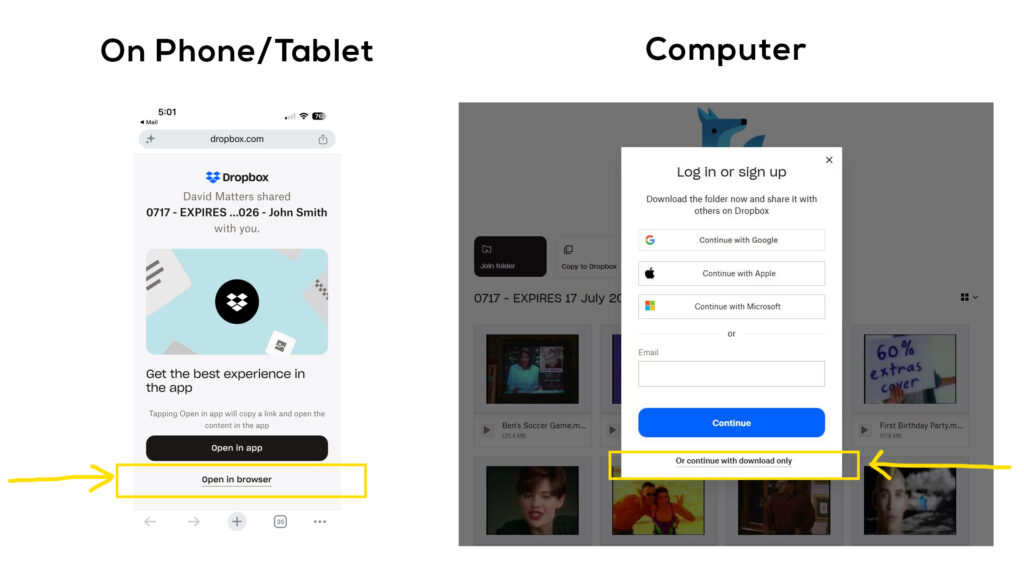
Click ‘Open in browser’ or ‘Download only’ to access the files.

Step 2:

You can download all the files in one go, or you can download them individually.

If you download them in one go, they’ll download as a zip file, which you’ll need to open (more on how to do that below).

You can either click the ‘Download’ button at the top of the page, which will download everything, or hover over each video and select the download option to download individually.
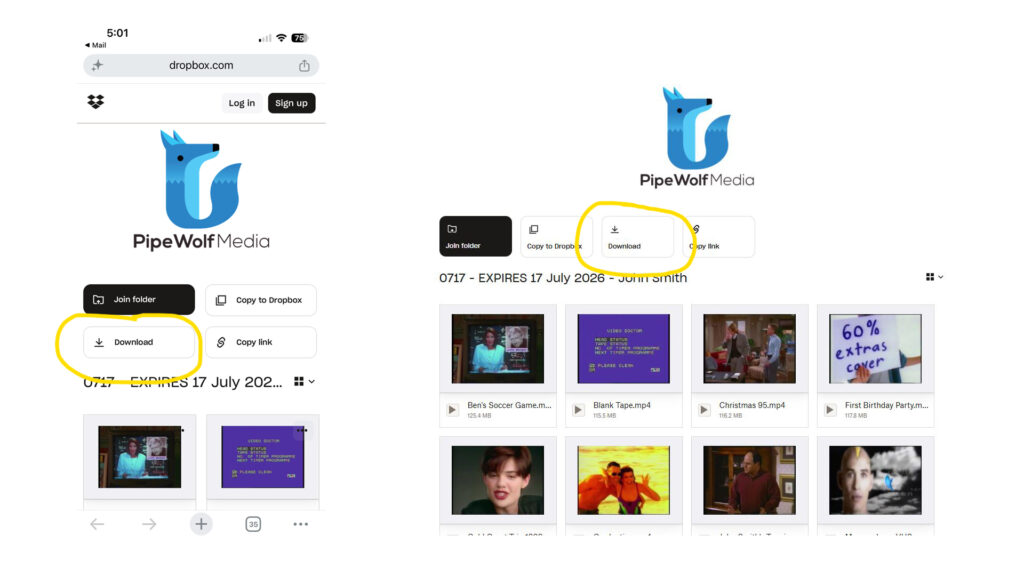
Click ‘Download’ at the top of the page to download all of the files at once.
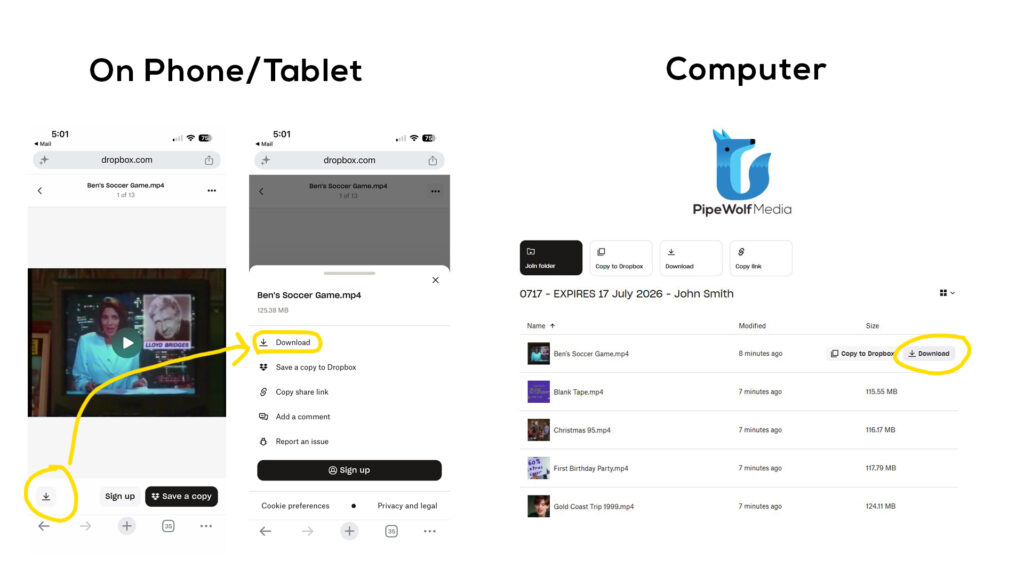
Click ‘Download’ on each individual video to download the files one at a time.


Step 3:

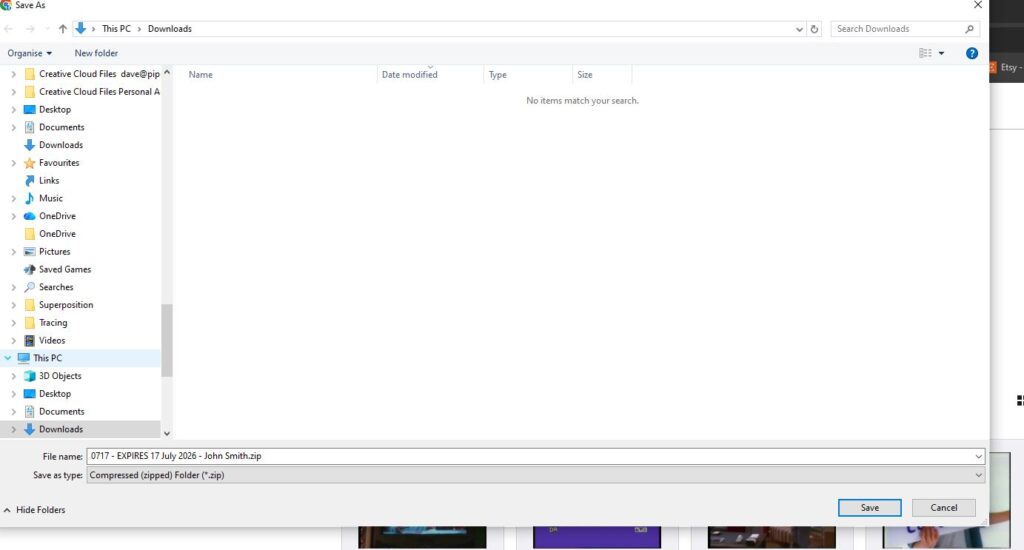
If you’re on a computer, you’ll be asked to confirm where you’d like to download the files too. On a phone or tablet, the files will probably download to your photo reel or files folder depending how your phone is set up.
Step 4:

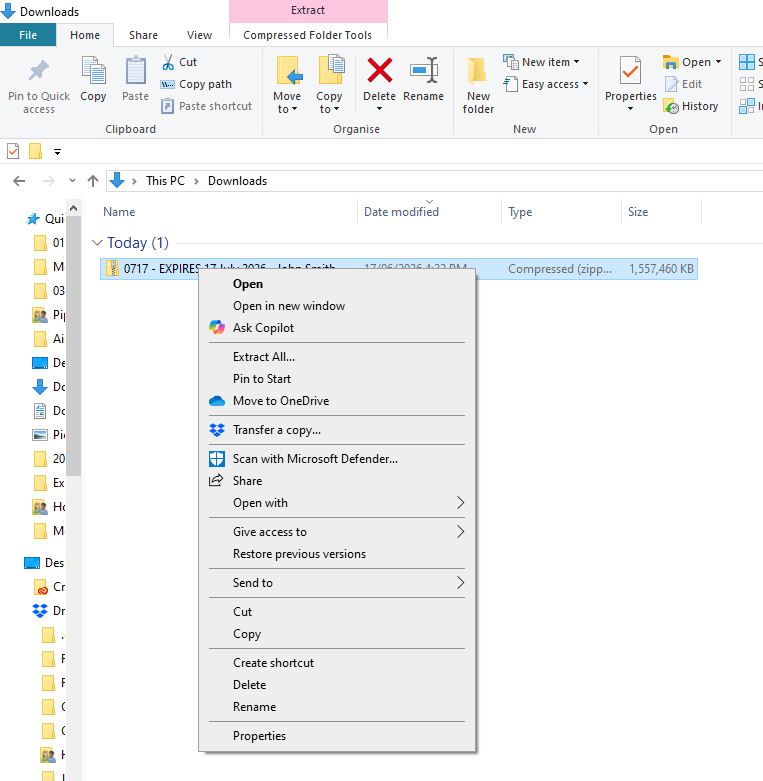
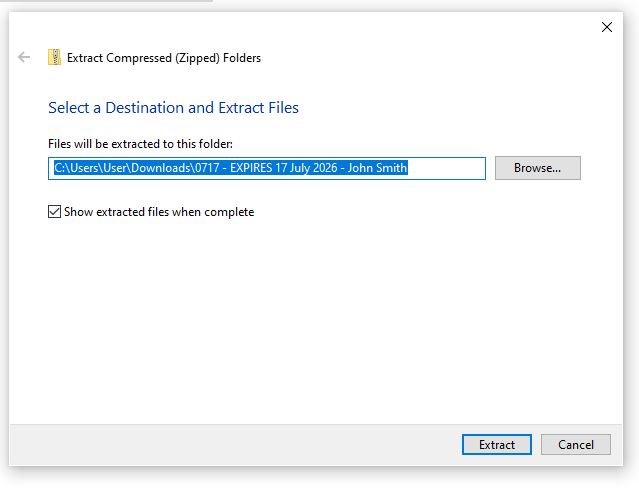
If downloading all the files at once, you’ll find a zip file which you need to extract the files from. To do this, right-click on the zip file and select ‘Extract All’ from the drop-down menu. Follow the prompts, and you’ll find your files in a folder saved in the same location as the zip file.
If you have any questions about this process please get in touch – we’re always here to help.

  • Facebook
  • Twitter
  • Reddit
  • Pinterest
  • Google+
  • LinkedIn
  • E-Mail

About The Author

PipeWolf Media are film and audio production specialists. We provide the perfect combination of expert production and down to earth service. Our services include videography, virtual tours, live streaming, podcast editing subscriptions, outdoor cinema hire and media transfers.

Comments are closed.

Contact Us:

info@pipewolfmedia.com
0439 471 135

Our office hours are 10am – 6pm, Monday – Friday

By appointment only:
7 Stafford Street, Berkeley, 2506

Video production company

Acknowledgement

We acknowledge the Traditional Owners and Custodians of the lands on which we work and pay our respects to Indigenous Elders past, present and emerging.

Sovereignty has never been ceded. It always was and always will be, Aboriginal land.

About

PipeWolf Media are videographers based in Wollongong specialising film and audio production for local businesses and events in and around the Illawarra.

Our services include videography, virtual tours, media transfers, live streaming and podcast editing subscriptions.

We love to bring ideas to life with the perfect combination of expert production and down to earth service.

Let’s work together!

© 2026 PipeWolf Media